Back to Main Menu

How to Issue Rewards Points

Points

Staff

TL;DR: You can issue points in three ways. Most happen automatically, but sometimes you need to do it manually.

1. Receipt Upload

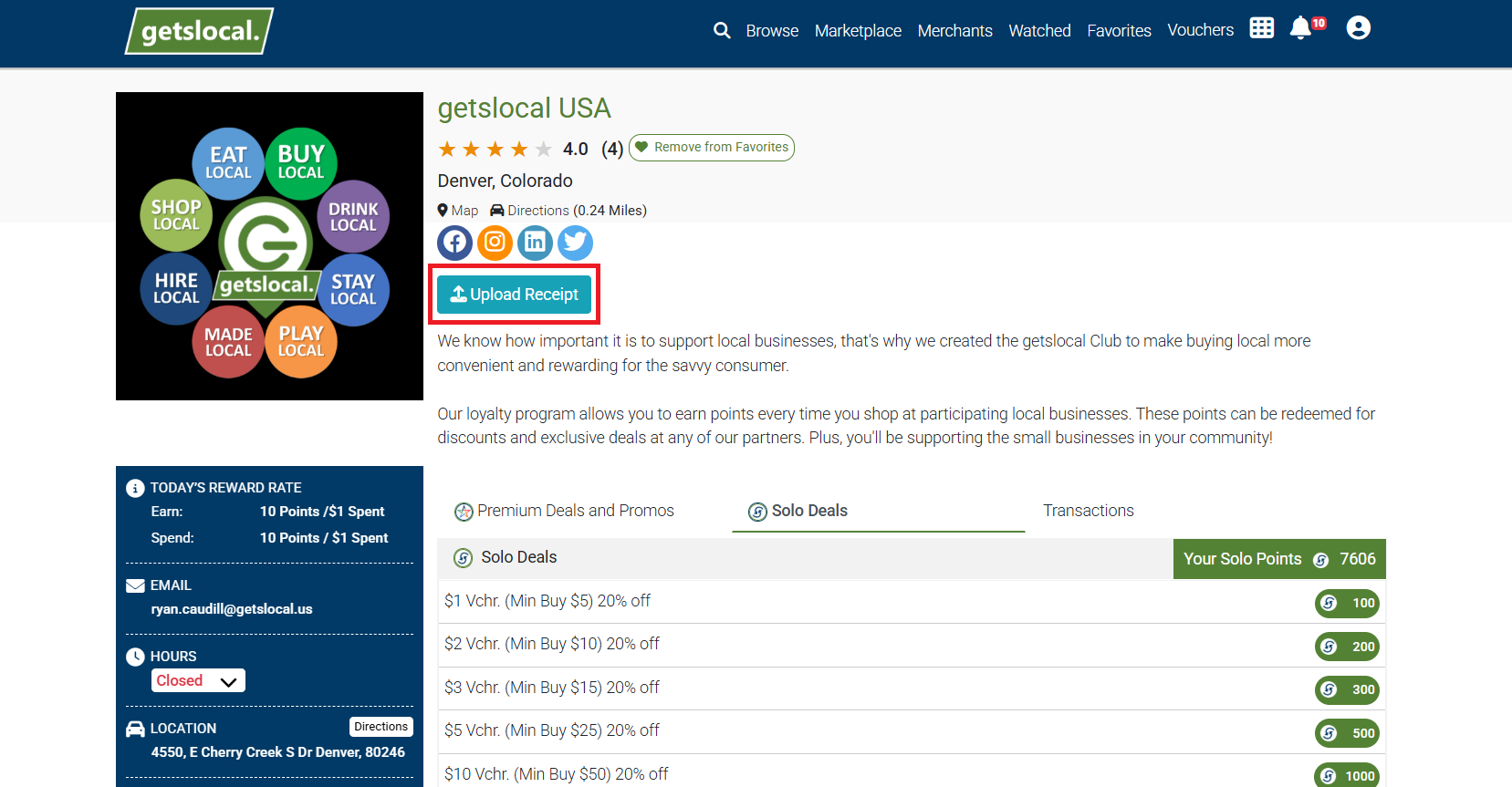
This is the standard method how customers earn rewards points. Tell the customer to grab a copy of their receipt (digital or physical) and to snap a photo of their receipt in the Club Rewards app using the Upload Receipt button on your businesses profile. You don't need to do anything right now.

2. Card Linking

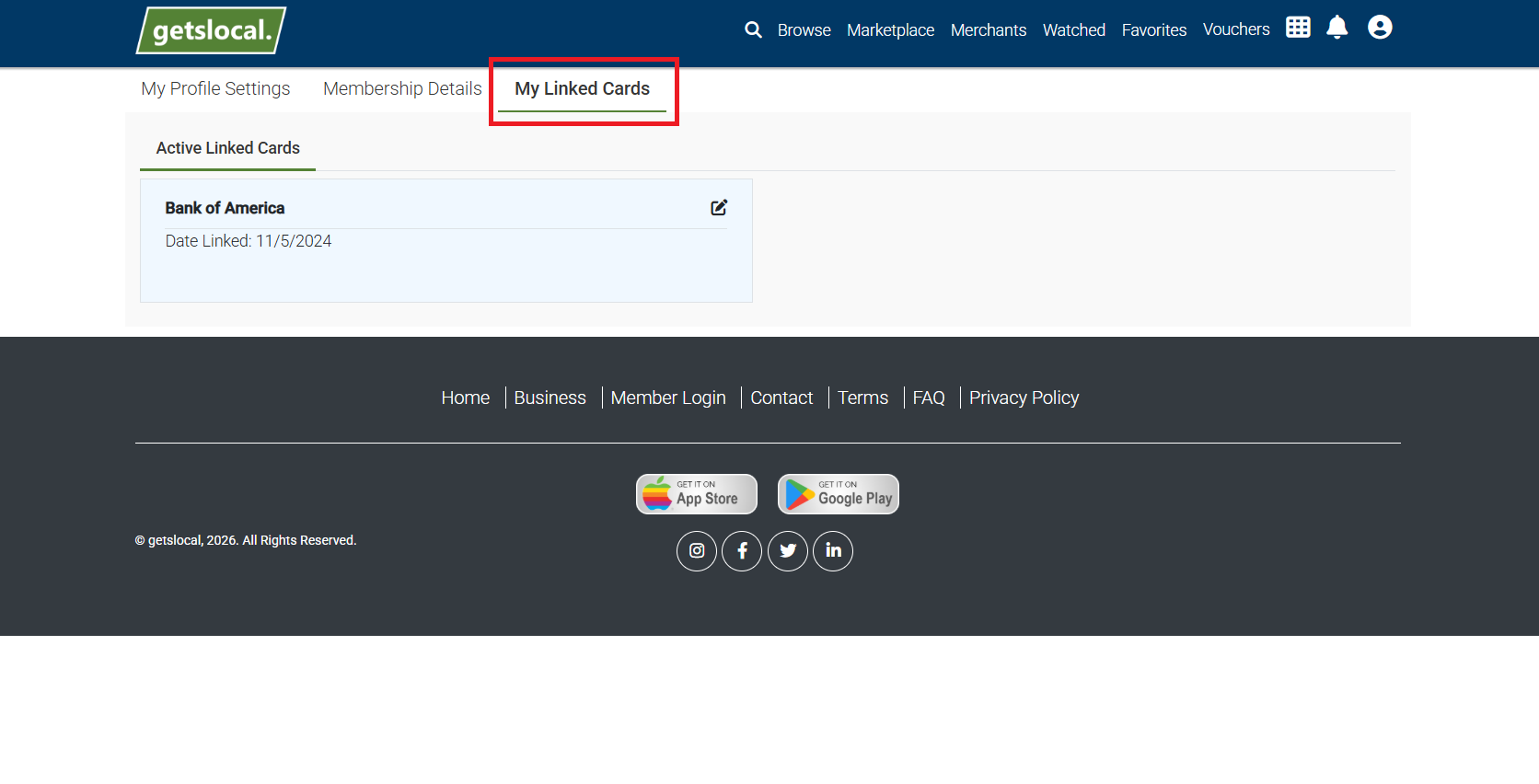
This is the automated method of earning points for Premium Club Members. If the customer has linked their card in the app, points issue automatically when they pay with that card 3-5 days after the transaction is posted to their account. Note: They must favorite the businesses they wish to earn points with.

3. Manual Entry

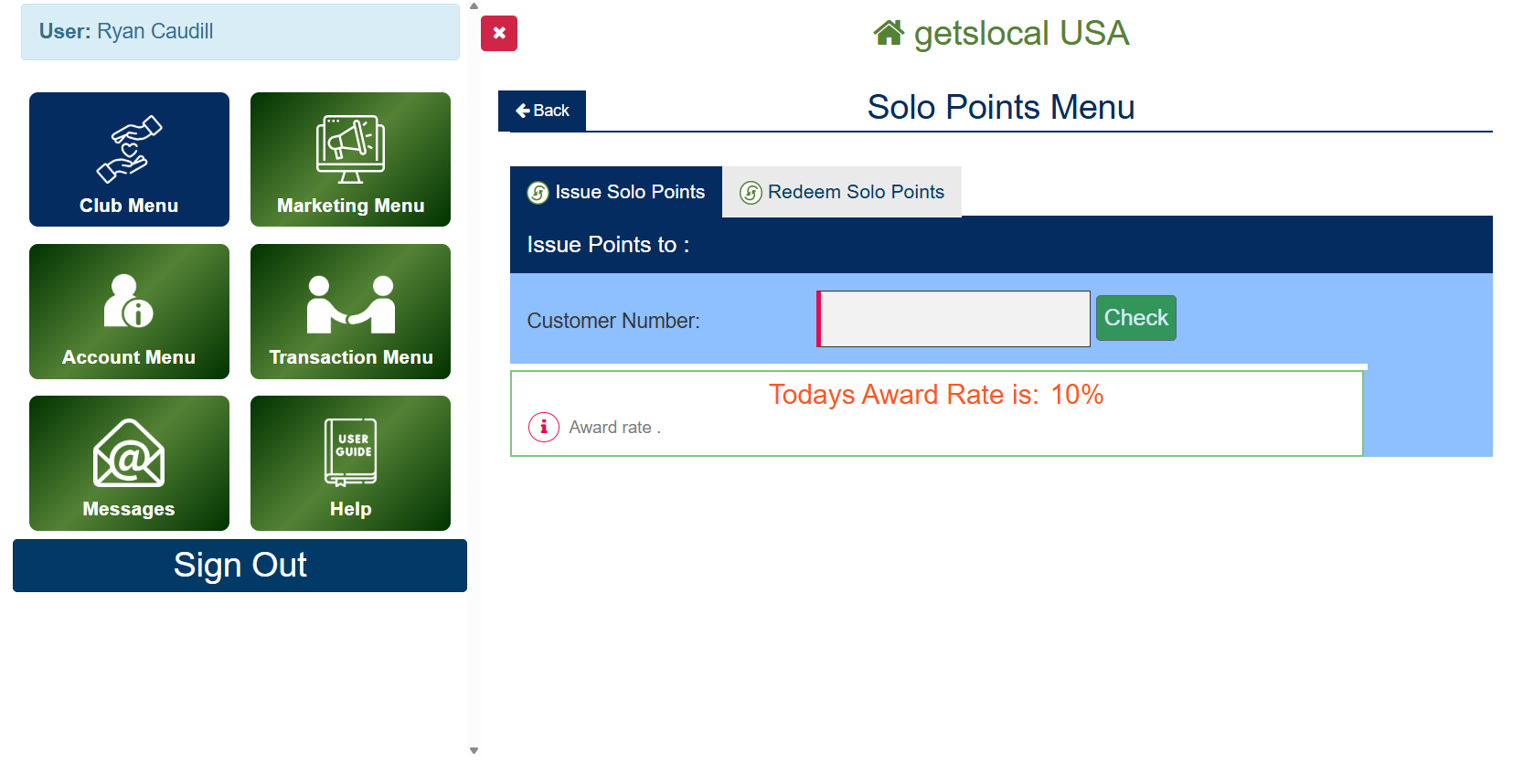
This is the manual method of issuing points. Using the Club Connect app go to Club Menu > Solo Points > Type in the customers cell phone number > Enter the cash value of the transaction > Then select issue points. Points will then be instantly added to their account. This method can also be used to redeem or subtract points from a club members account.

Different Rewards Methods

Note on Approving / Rejecting Receipt Uploads

As the merchant you must approve receipts uploaded from your customers in order for them to earn rewards points. You have the option to approve or reject receipts at your ​discretion. Please note that if you reject a receipt it must have a reason provided, this reason for rejection is visible to the club member. 

If you do not regularly login to the Club Connect app and approve your uploaded receipts your customers will not earn points.


How to Review Receipt Uploads

Learn More