 Back to Main Menu
Management
Loyalty
TL;DR: If you do not regularly login to the Club Connect app and approve your uploaded receipts your customers will not earn points.

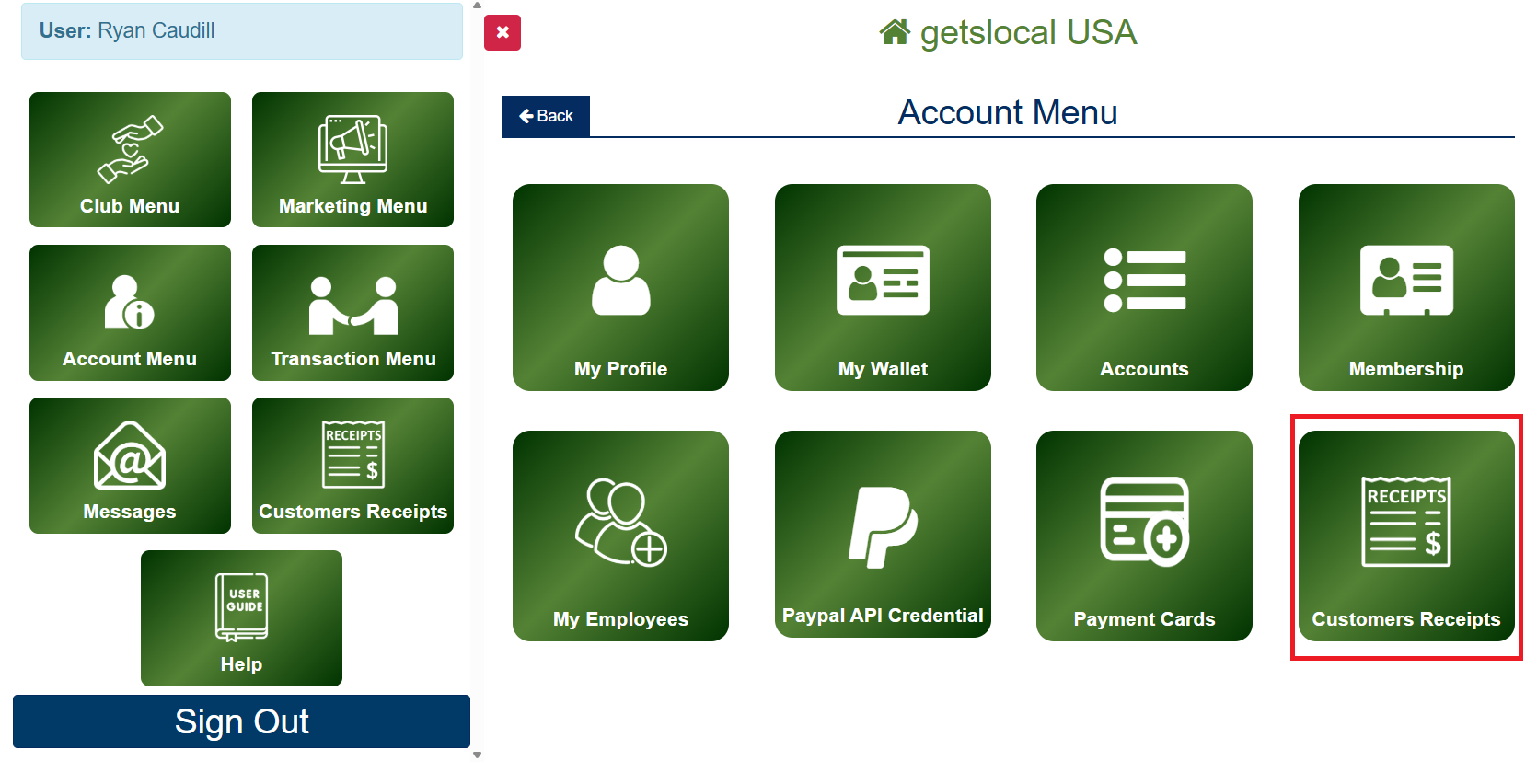
Go to Account Menu > Customers Receipts.

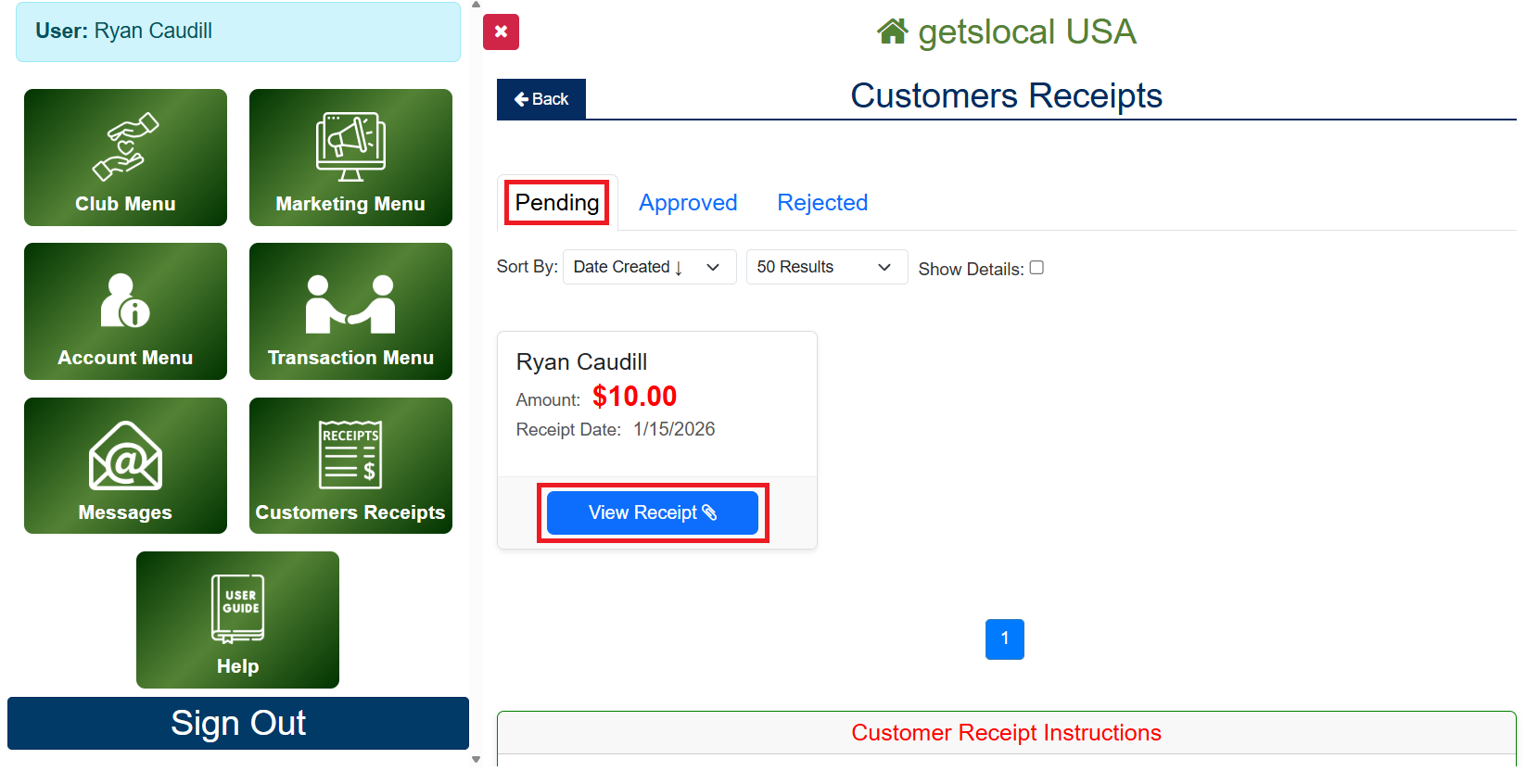
Under the Pending tab you will see all recently uploaded receipts from your club members.

Locate a receipt, then click View Receipt

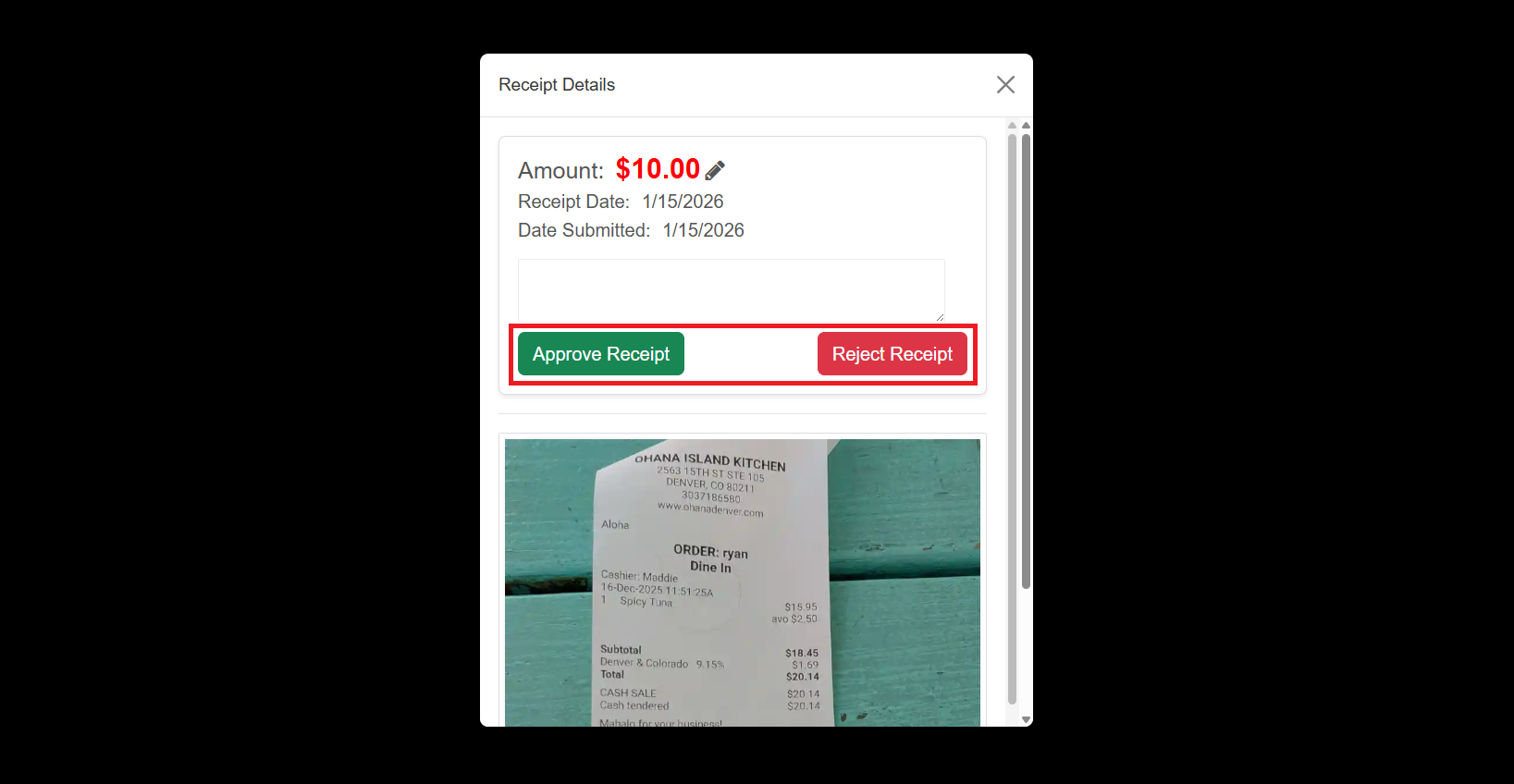
Review the receipt upload, then either click Approve Receipt or Reject Receipt.
Reject Receipts when the upload is invalid. Rejected Receipts require a reason for rejection which is made visible to the club member.
When you approve a receipt it can take up to 4 hours to process. At any time during its processing phase you can remove the receipt from the processing phase by clicking the Approved tab, viewing the receipt, and selecting Cancel Approval.
Receipts that are reviewed manually by our team may be rejected. Common rejection reasons:
1. Blurry Image: We couldn't read the date or total.
2. Too Old: Receipt was from more than 30 days ago.
3. Duplicate: This receipt was already uploaded.
4. Wrong Store: The receipt is not from your location.