 Back to Main Menu
Offer
Marketing
Start Here: Before you create a deal, decide on your goal. Are you trying to get new customers or reward current ones?
 How to Add a Solo Deal (Loyalty Program)
Solo Deals are Offers Paid with Points

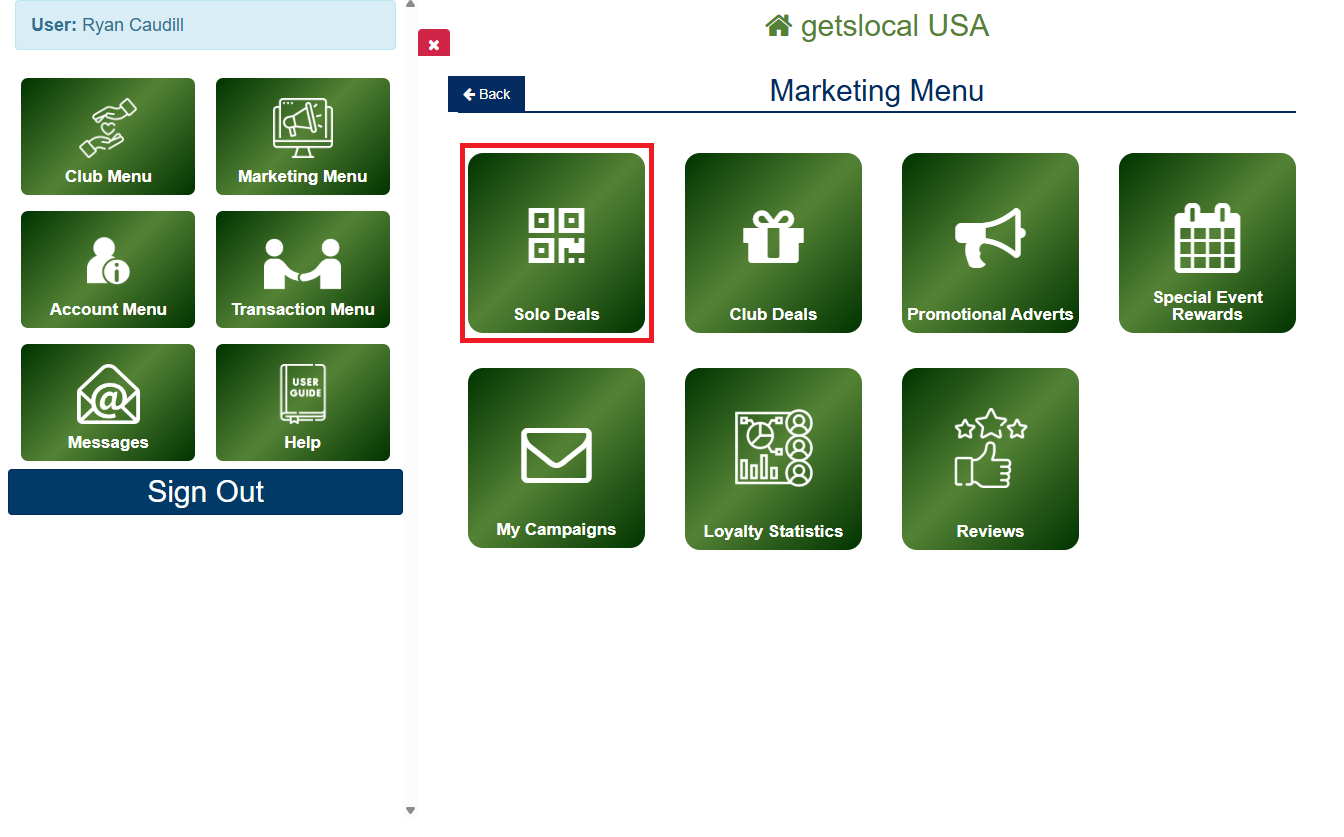
Go to Marketing Menu > Solo Deals.

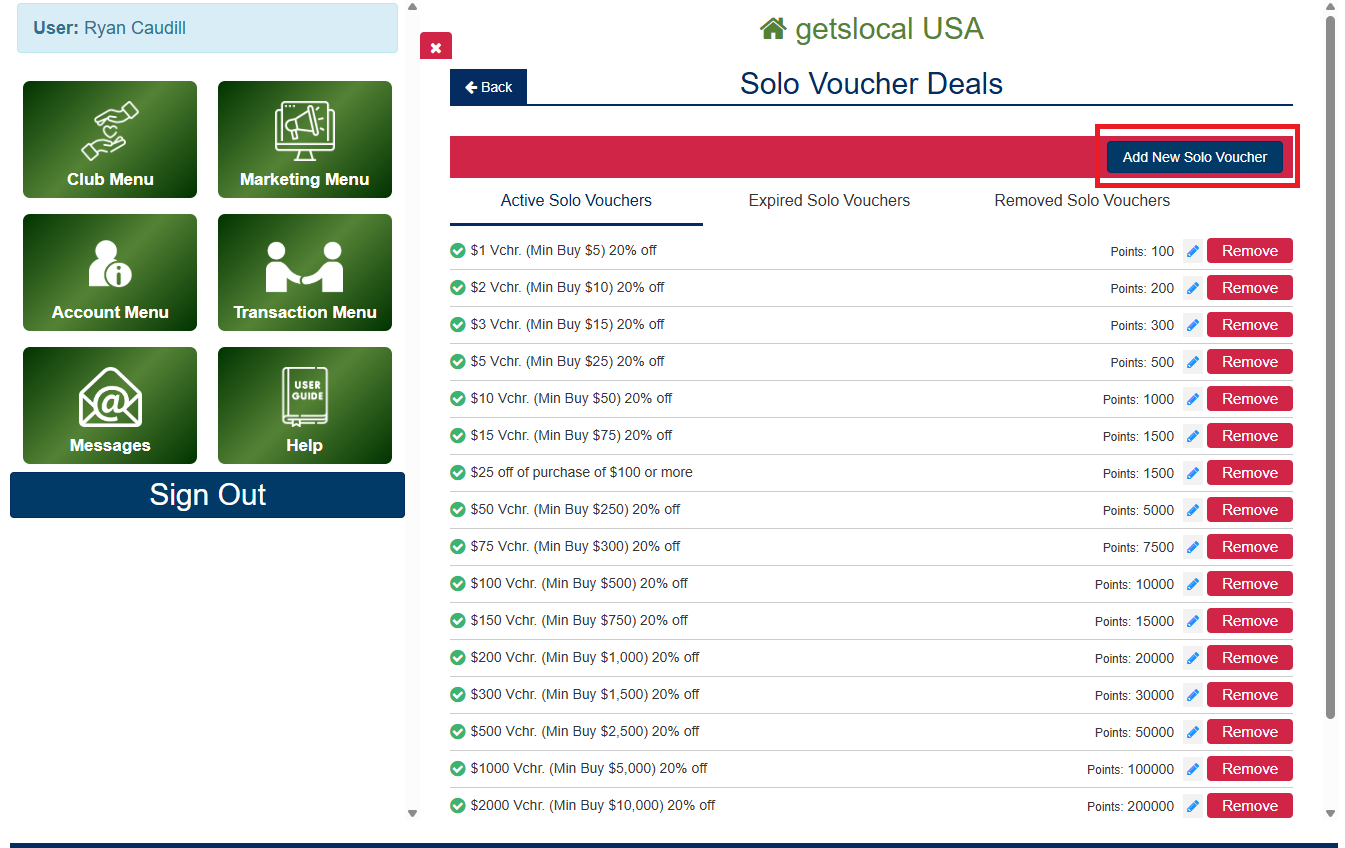
Tap the Add New Solo Voucher button.

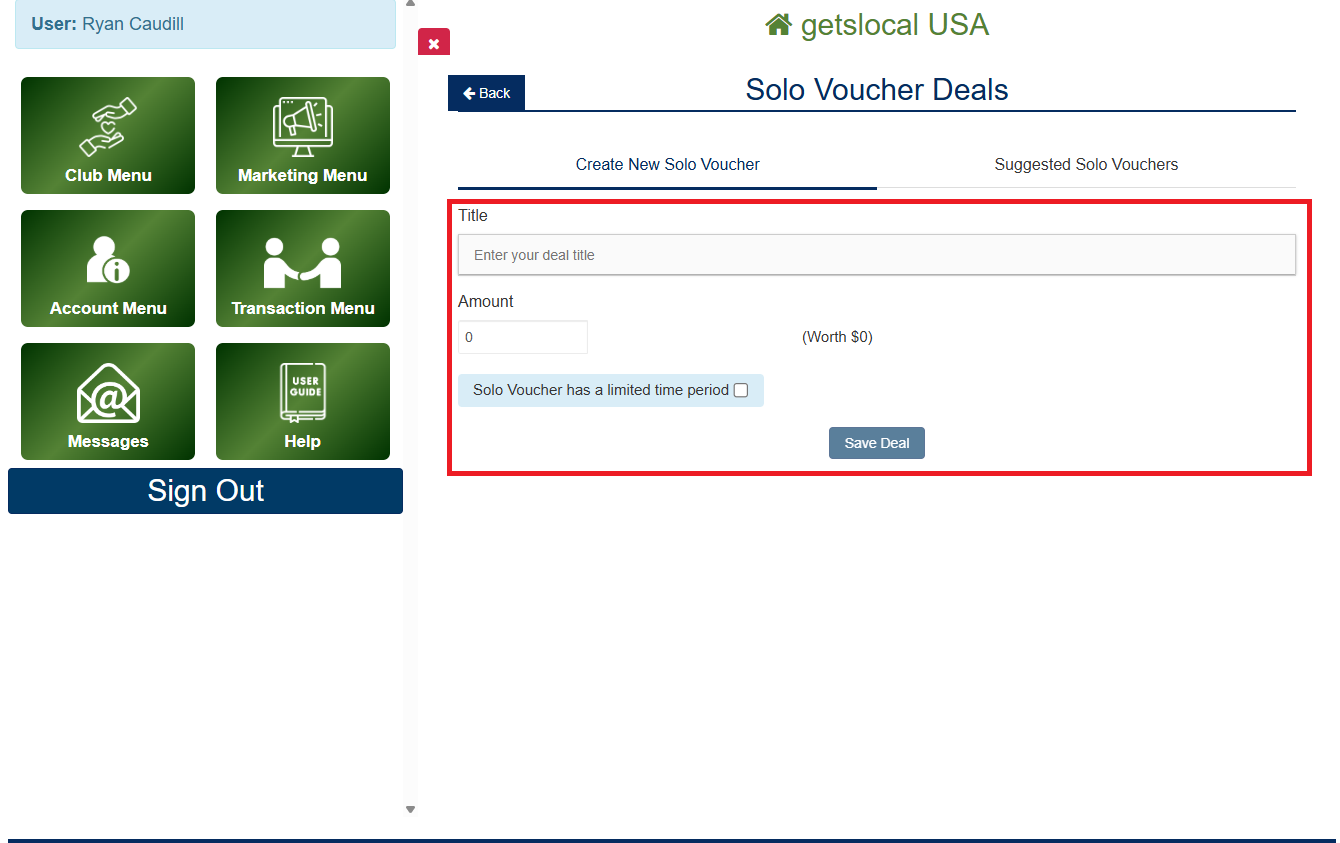
Set the Reward: Define exactly what they get.
e.g., "Free Coffee" or "$5 Off Sandwich"

Set the Point Cost
Rule of thumb: 1000 Points = $10 Value.

Set Conditions: Add a "Minimum Spend" (e.g., Min Purchase $20) to ensure you remain profitable.
 How to Add a Club Deal (Network-Wide Cash Offer)
Club Deals are Offers Paid with Cash
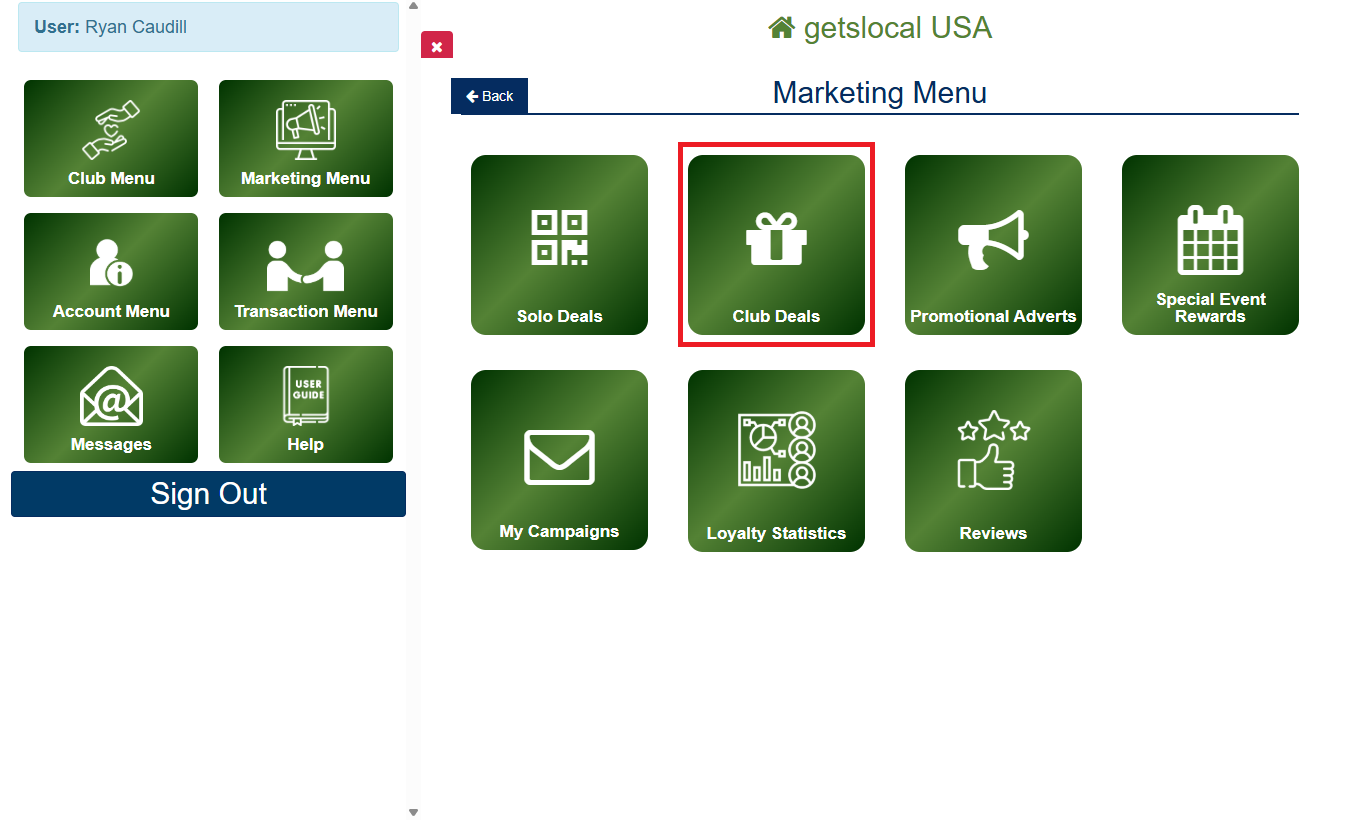
Go to Marketing Menu > Club Deals.
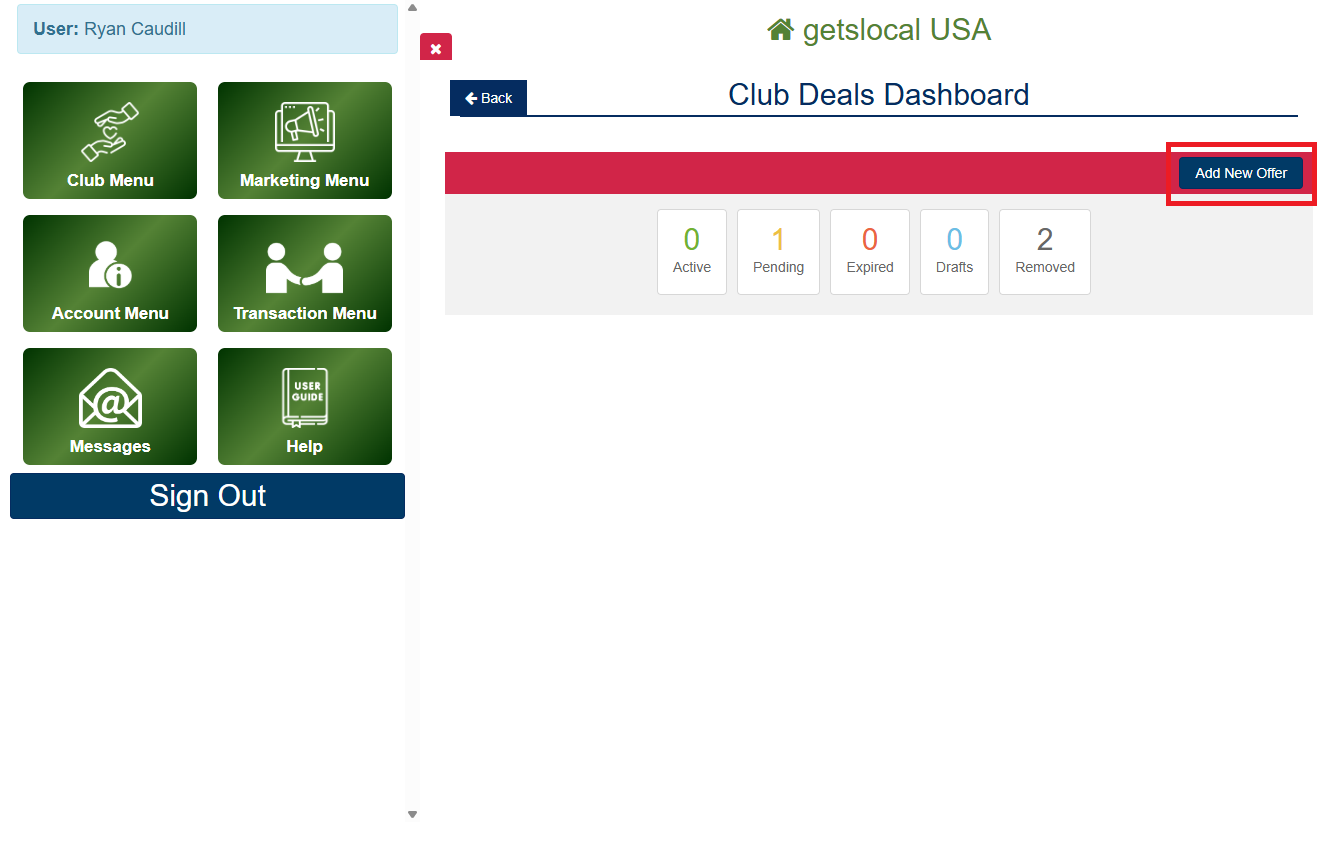
Tap the Add New Offer button.
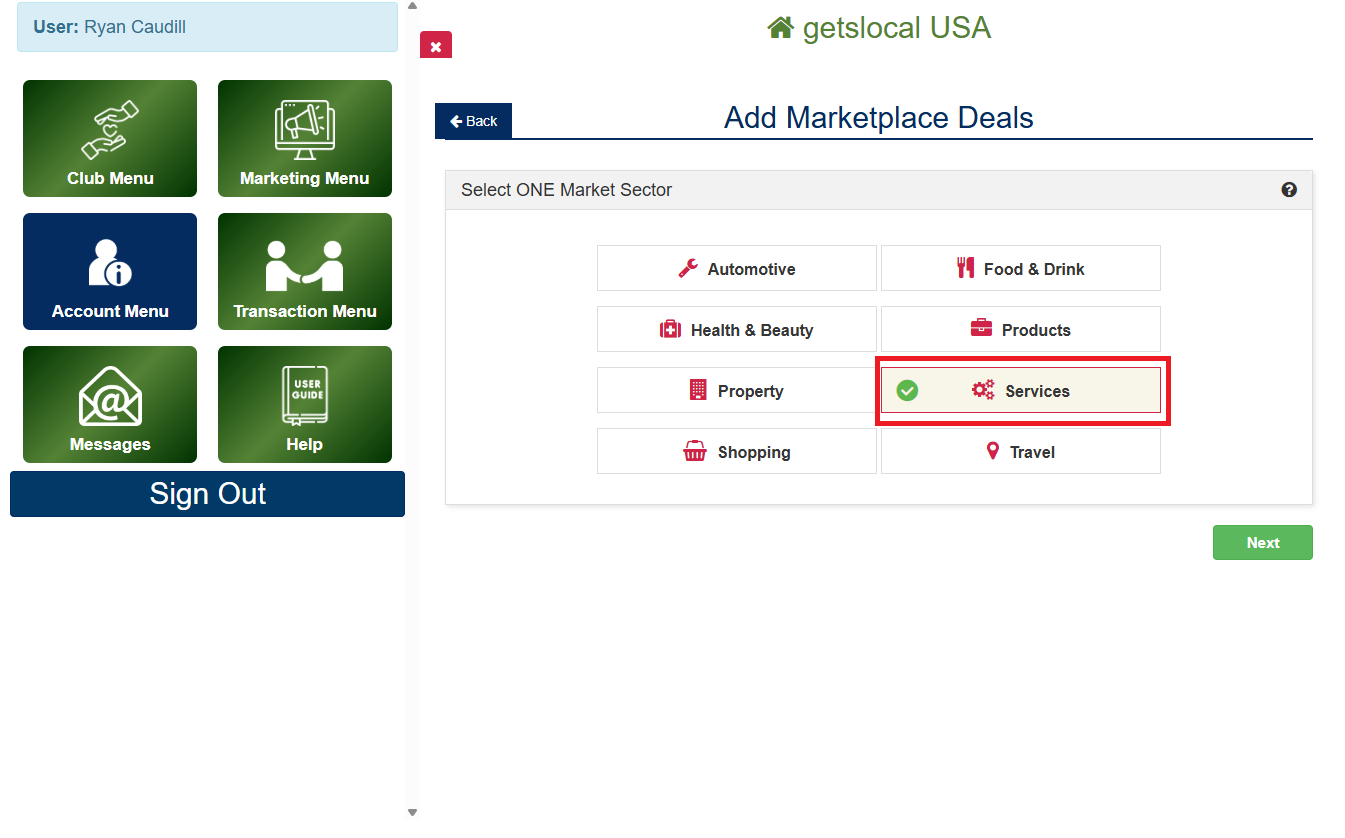
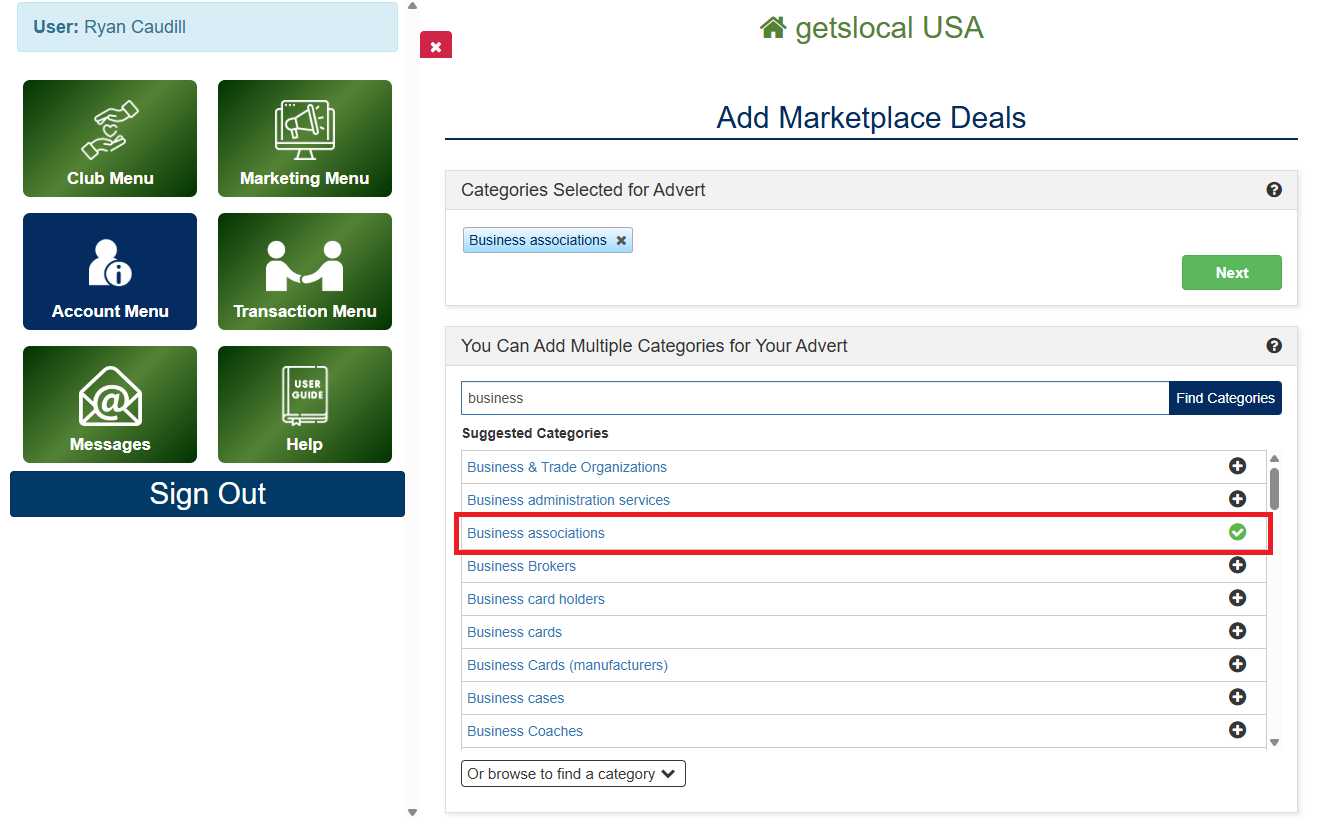
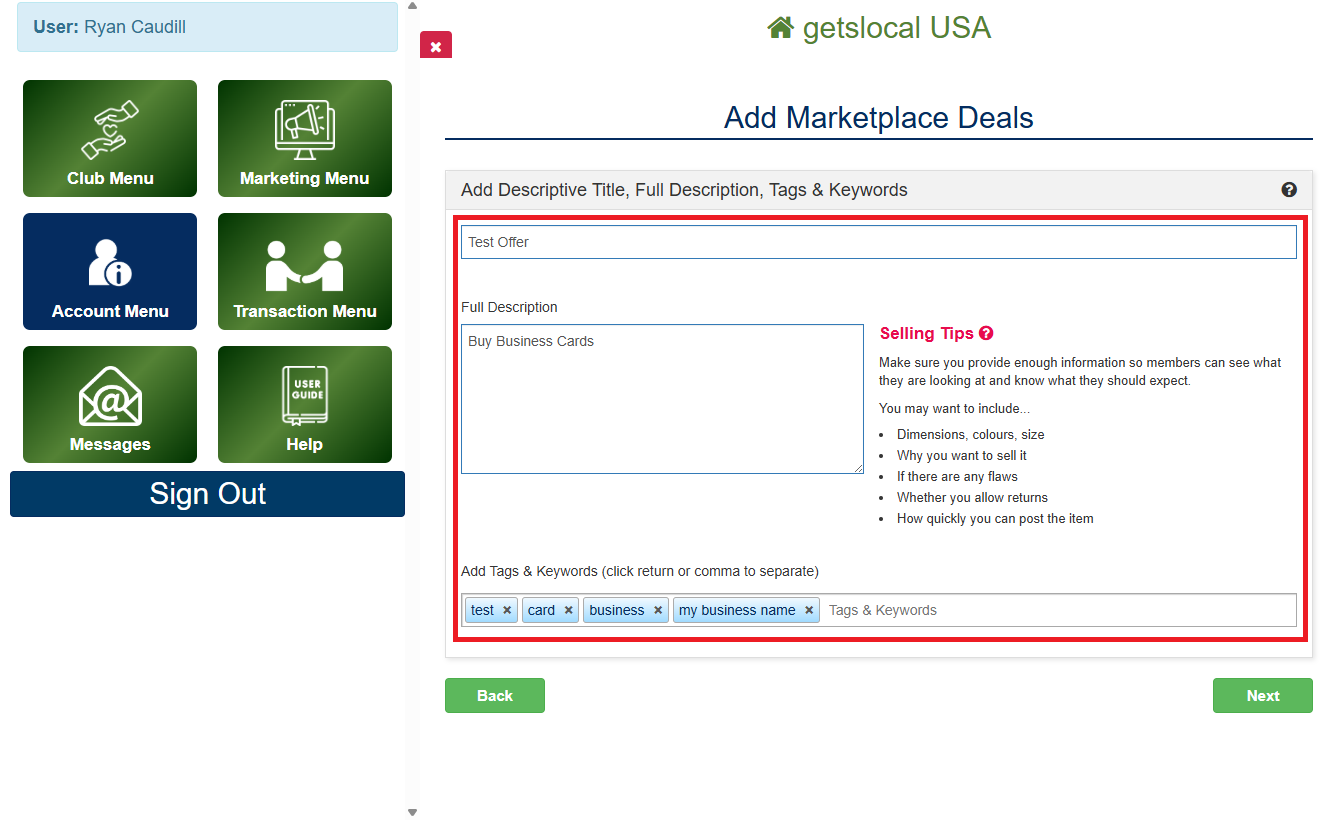
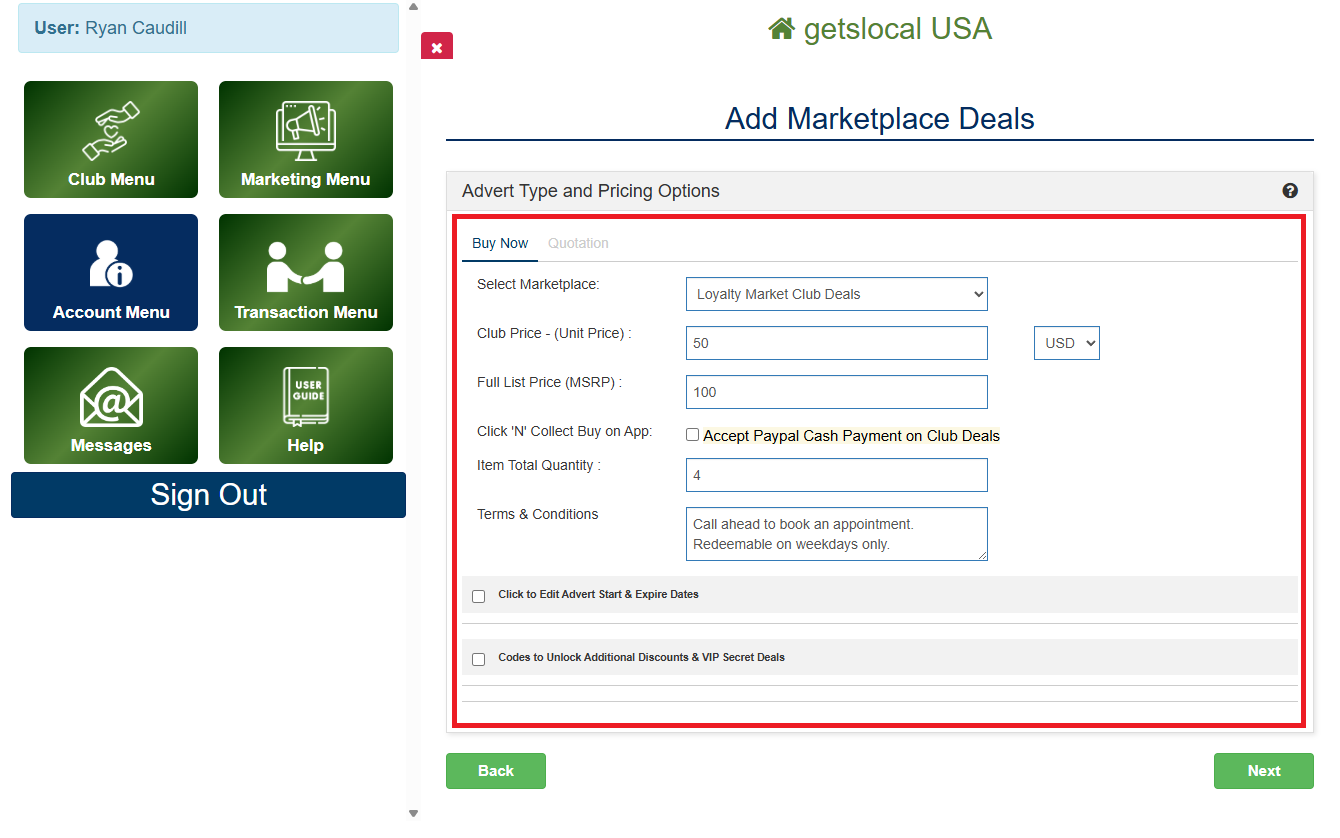
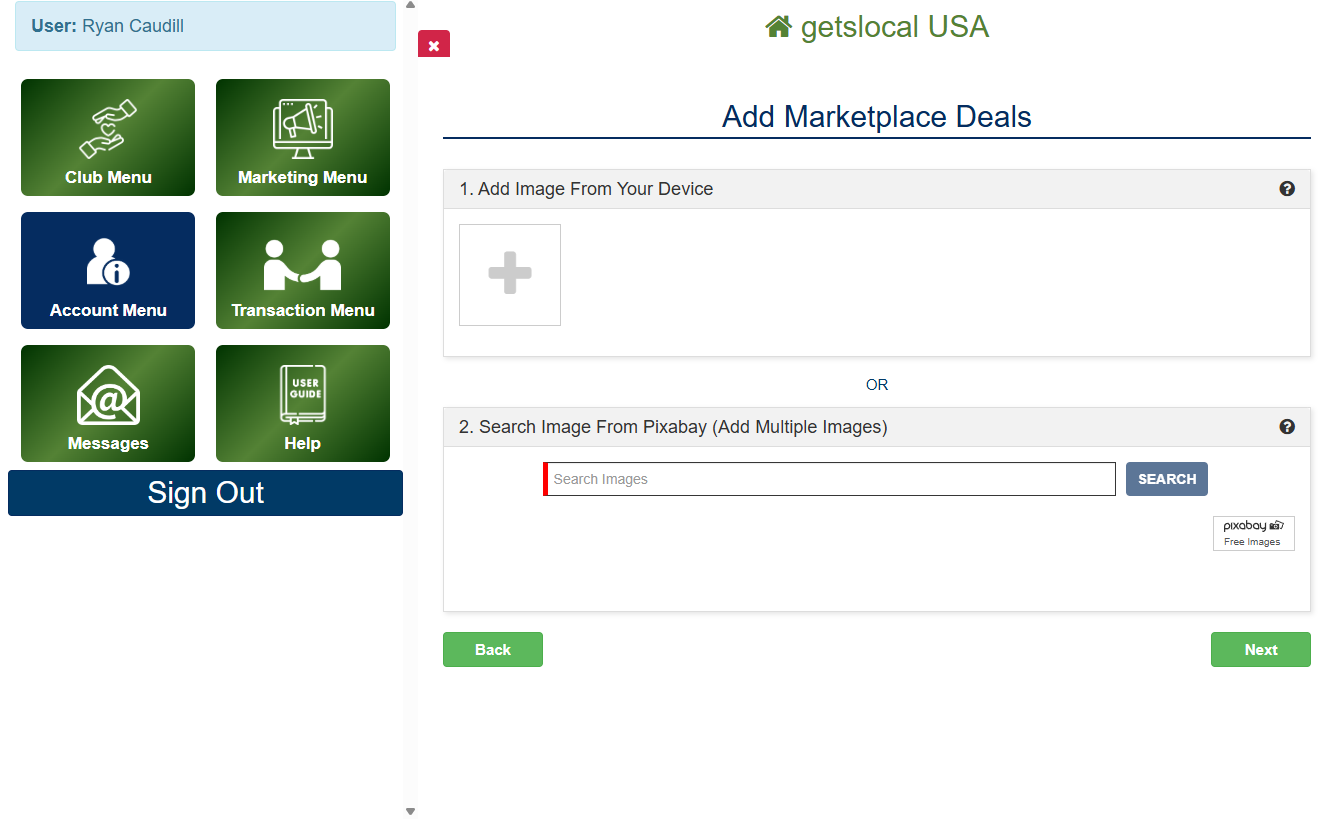
Create the Offer: Fill out the Club Deal Wizard. Make this offer aggressive. It is your first handshake with a stranger.
e.g., "$20 Voucher for only $10"
Set Quantity: Limit your exposure. Start with 10 vouchers to test the water.
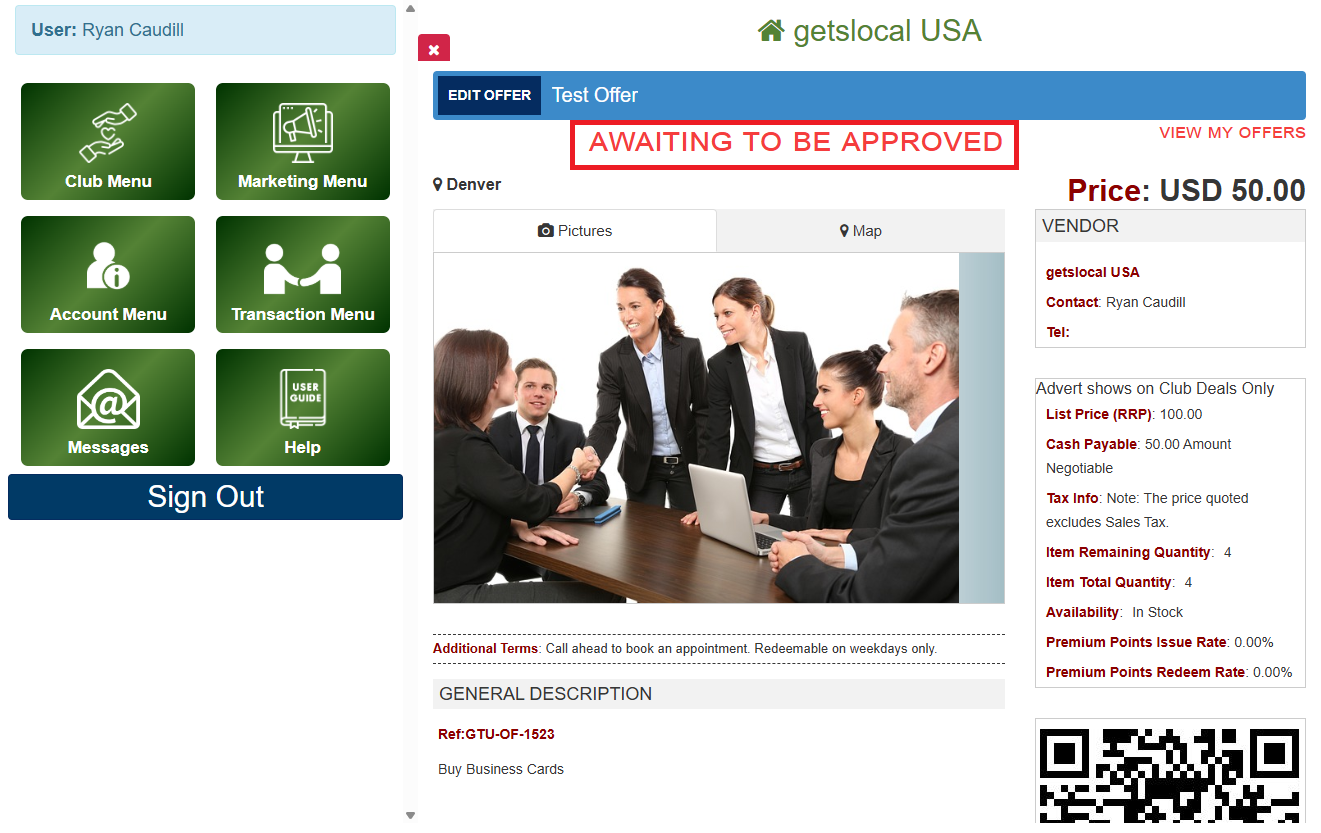
Publish: Once approved & live, this deal is visible to the entire network immediately.