 Back to Main Menu
Security
Admin
No need to share one password. Give every employee their own login and unique PIN code. Employees can use their PIN code to redeem rewards vouchers. This allows you to track exactly where, when, and who redeemed an offer against your account.
 How to Add a New Employee

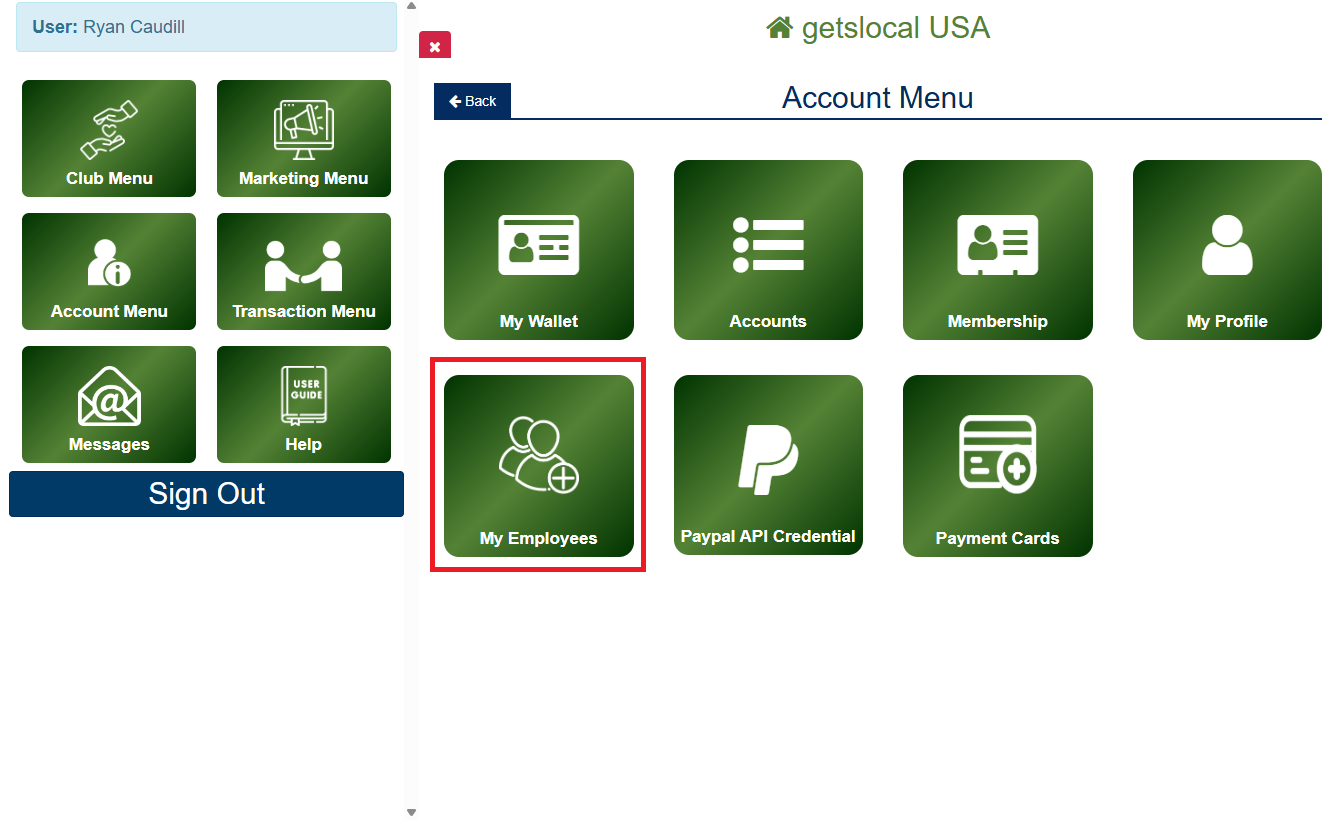
Go to Account Menu > My Employees.

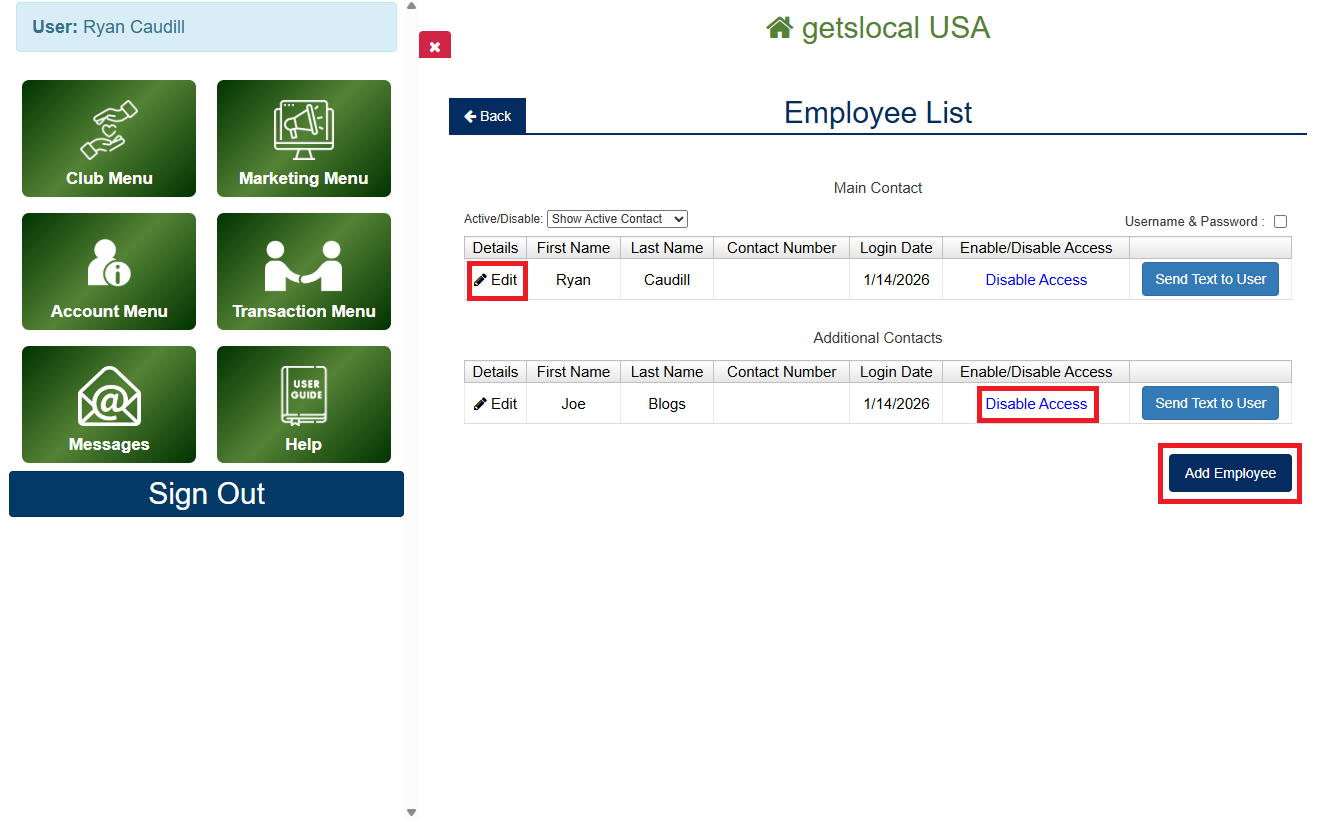
Tap the Add Employee button.

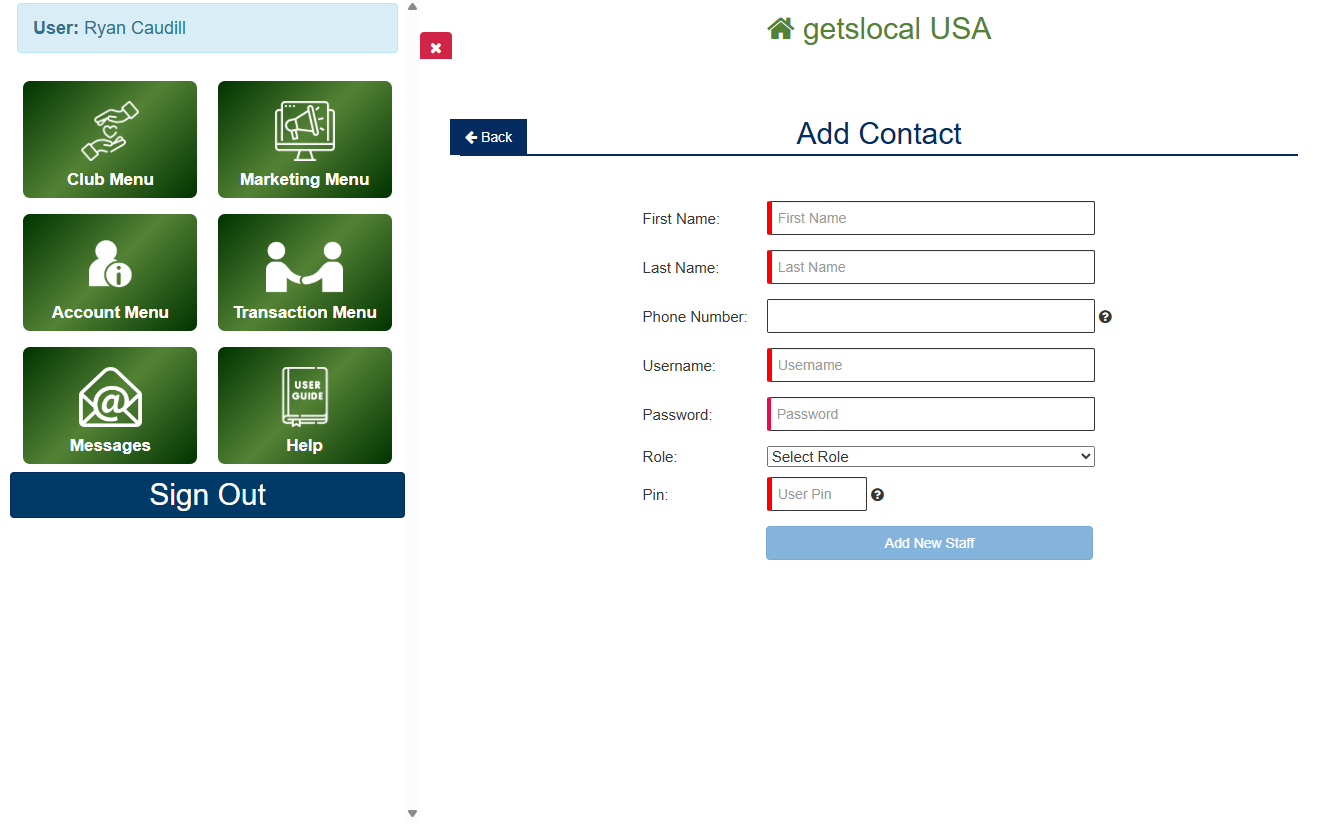
Fill out the Add Contact Form.

Save the new account by tapping the Add New Staff button.
 How to Edit an Employee Account
You can use this step to edit your own account information.
Go to Account Menu > My Employees.
Tap the Edit button next to the contact you wish to edit.
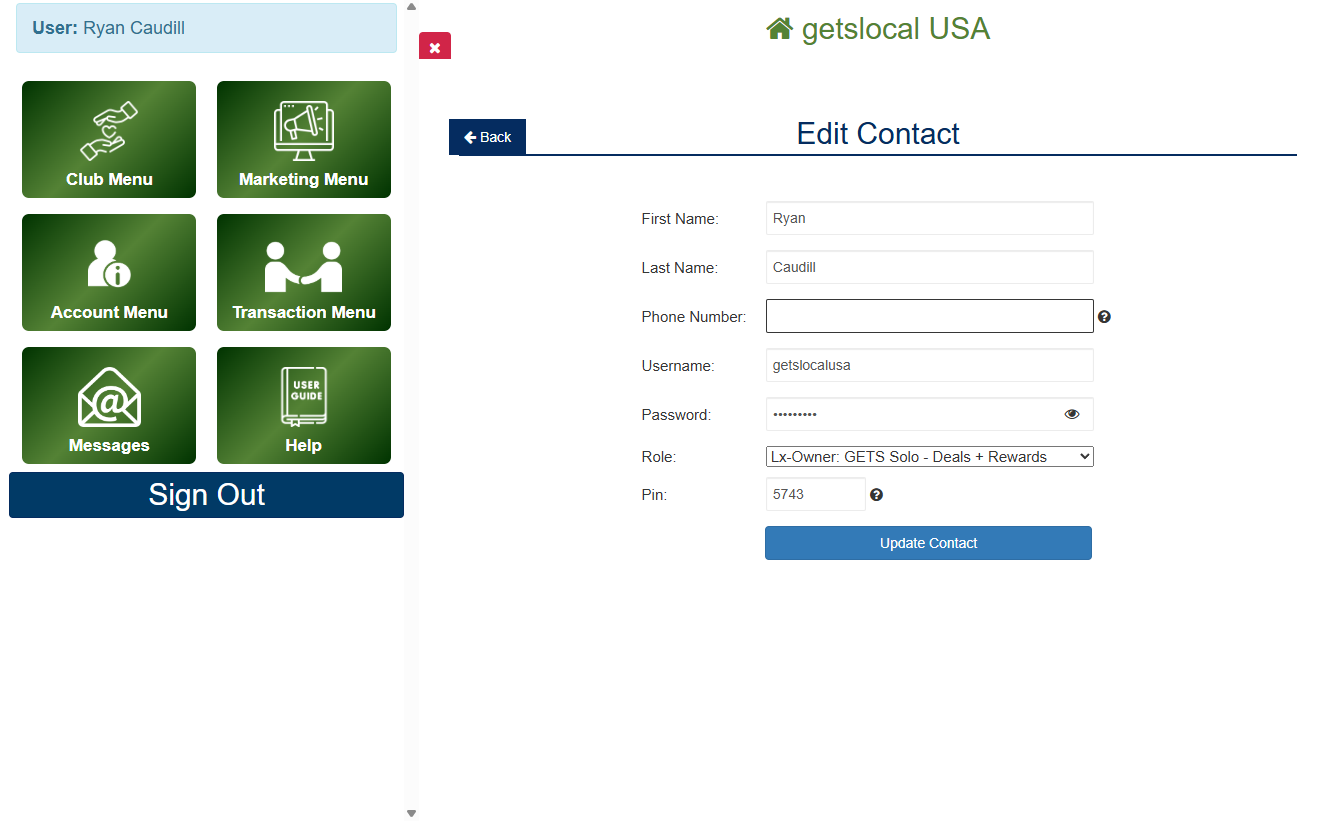
Modify the details you wish to change.
Tap Update Contact to save changes.
 How to Disable an Employee Account
Go to Account Menu > My Employees.
Tap the Disable Access button next to the contact you wish to disable access for.
If you would like the employee account permanently removed please contact us.